Title here
Summary here
Discord’s slash commands can be terribly inconsistent, and it can be hard to know if the problem is a permissions problem, or a Discord UI/UX issue, or something else.
If you’re having trouble, here are some tips. Sections 1 to 3 are for everyone. When Discord is having problems explains the notes Sprinto posts during an outage, and For admins covers permissions.
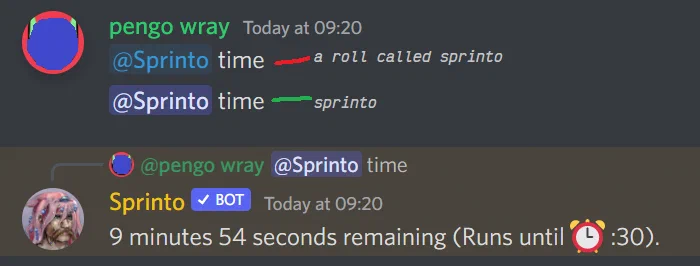
Spot the difference: The @Sprinto role can’t run commands. Discord creates this role with the same name as the bot and it’s a usability nightmare. The color and formatting of the role and bot may also be very similar, depending on Discord server settings.
@Sprinto as a prefix. Some folk will find @Sprinto more reliable and easier than slash commands. Example:The exceptions: /redeem, /create-active-role, /refresh-active-role and the right-click Clean up these results entry have no @Sprinto form. @Sprinto pets and @Sprinto settings on its own answer with the slash command to use, because those panels need buttons. Changing a setting by text still works, for example @Sprinto settings quotes off.
If there’s a Discord role named @Sprinto you might accidentally mention it instead of @Sprinto the bot. Check you didn’t mention a role.
To be sure which one you’re picking, look at the autocomplete list that pops up as you type @Sprinto. The bot has a profile picture.

If you mention the role by mistake, Sprinto can’t run your command, because Discord doesn’t show Sprinto the text of the message. Sprinto replies with a note:
The last line of the note is sometimes “Slash commands like /sprint work too.” A server admin gets both lines. If the role has the same name as the bot, a server admin also gets a suggestion to rename the role.
No reply at all can also mean you mentioned the role. Sprinto skips the note if it sent one to the same channel in the last 10 seconds, and just after Sprinto restarts, it may skip notes in a server until someone there uses a command.
In a server, Sprinto only reads messages that start with @Sprinto, because Discord hides the text of other messages from it. So /sprint sent as a plain chat message does nothing. (In a direct message to Sprinto, you don’t need @Sprinto.)
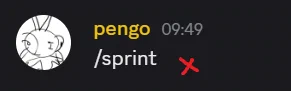
Sometimes sprint commands don’t succeed because they’re sent as chat messages.
How to tell if you’re sending a chat message instead of a slash command:
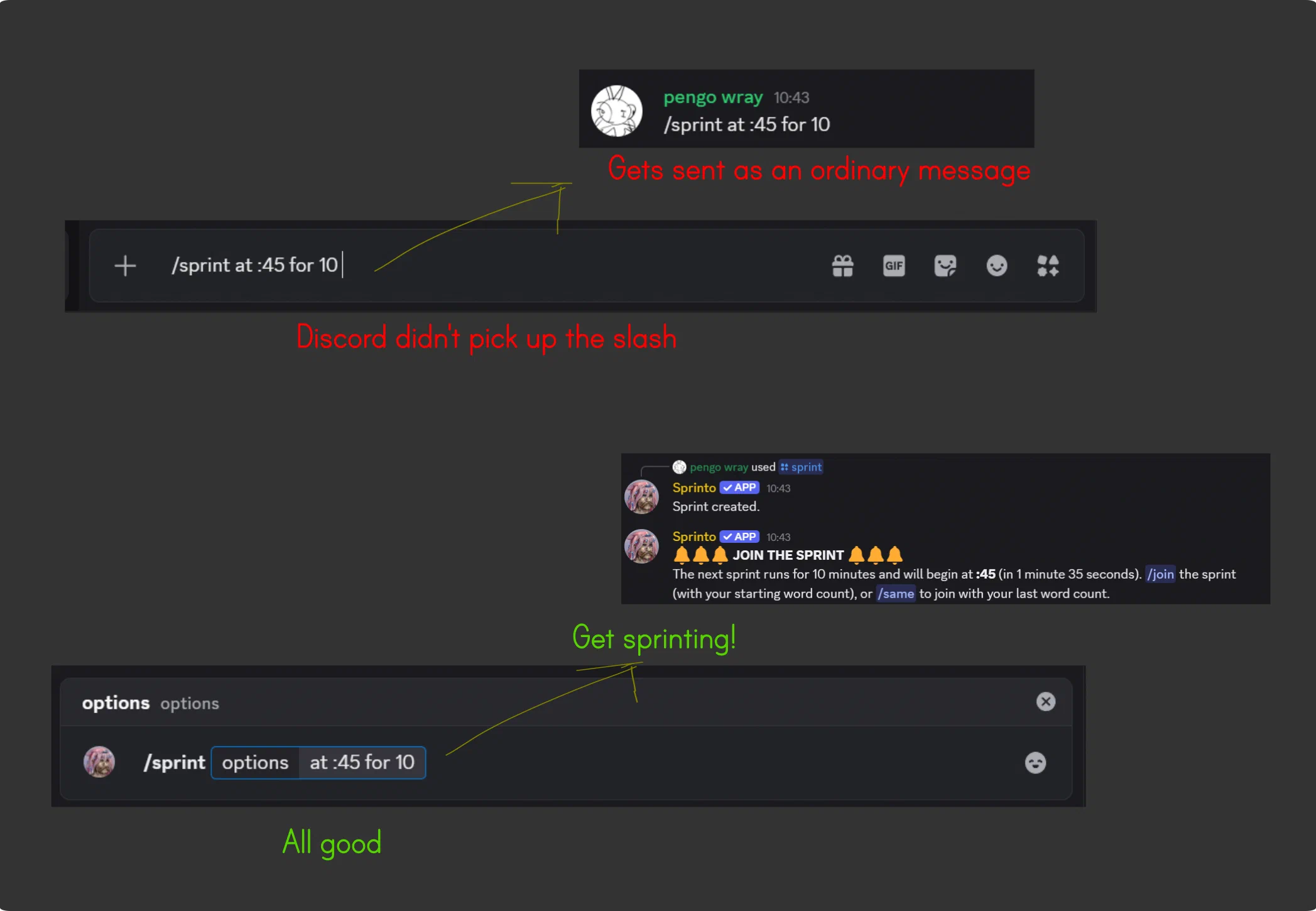
Slash commands that fail vs succeed
/sprint into chat instead of sending a /sprint command to Sprinto. Mobile is more prone to this problem.Tips:
Type a slash command (for example /sprint), then wait for the menu to pop up, then click or tap on Sprinto’s sprint command.
Try typing a single slash (/) and wait for the menu to pop up before typing the rest of /sprint.
On desktop with keyboard: after typing a command like /sprint you can use up & down arrows to select the command, and then Tab so you can enter any options.
Discord is bad at copy-pasting slash commands, so avoid that if you can. It’s also bad at copy-pasting @Sprinto (it might switch to @‘ing the role).
Ask for help or report strange Sprinto behavior with /feedback, or come to the Sprinto Planet Discord for support. Your report is posted anonymously on Sprinto Planet, and if the developer answers it, the reply arrives in the channel you sent it from, so you no longer need to join Sprinto Planet to hear back.

Slash commands will not work if you’re using “Legacy chat input”, so keep this off unless you need it. (User Settings > Accessibility)
Sometimes Discord stops delivering slash commands to bots. Sprinto notices this, registers its commands again, and keeps retrying until they come back. You don’t need to report it.
If a sprint is running in a channel when this happens, Sprinto posts a note there with the @Sprinto command to type instead:
@Sprinto join same in the join window, @Sprinto time while people are writing, and @Sprinto words 200 when word counts are due.If Discord isn’t delivering @Sprinto messages either, the note says:
Sprinto’s status appears under its name in the member list:
| Status | Meaning |
|---|---|
| Listening to /sprint | Normal. |
| Listening to @Sprinto sprint | Slash commands aren’t reaching Sprinto, but @Sprinto messages are. |
| Listening to status.discord.com | Discord’s status page reports an incident. |
While Discord’s status page reports an incident, Sprinto may add a line under a sprint’s results, at most once a day per server:
/ping
(or @Sprinto#2517 ping
) shows how fast Sprinto and Discord are responding. Only you see the reply to /ping. It shows:
/pingme: “Change your pings: /pingme /forgetme /pings-status /sneak-away” and “Always or never: /pings-always /pings-never”.The count of answered and missed commands covers the last 2 hours if Sprinto missed any in that time, otherwise the last day, otherwise the last week.
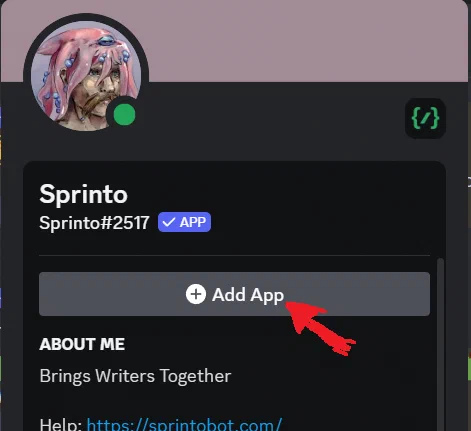
Some of Sprinto’s permissions have been reset in the past (for example, in early September 2022). Try re-adding Sprinto to your server to fix permission problems (you do not need to kick him first). From Sprinto’s profile, click Add App.
If Sprinto isn’t starting sprints in a channel, check that Sprinto has View Channel and Send Messages there. In a thread, Sprinto needs Send Messages in Threads in place of Send Messages. When Sprinto can’t post, /sprint answers with a note only you can see. @Sprinto sprint gets no answer at all.
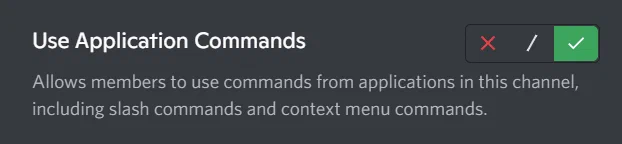
If users can’t see the slash command menus, check they have Use Application Commands permission (can be set per-channel or per-role).
Sprinto’s commands also have permissions under Server Settings > Integrations > Sprinto > Manage.
For completeness: under Server Settings > Roles, there are also permissions under Sprinto’s role (“This role is managed by an integration: Sprinto”). Sprinto doesn’t need special role permissions, except it needs Manage Roles if you’re using an @Active Sprinters role (set up with /create-active-role) that you want Sprinto to manage. Without Manage Roles, /create-active-role replies: “Sorry, I couldn’t create the role. I probably need the Manage Roles permission. Grant it and try again.”
Thanks for your patience and support.
Discord required bots to switch to slash commands. Sprinto needed a surprising amount of work to keep working with the new system, and it’s still a work in progress. Some less common commands work only with @Sprinto, for example @Sprinto tare 1000, @Sprinto who, @Sprinto roll 2d6 and @Sprinto last one.
This guide was originally posted on the Sprinto Planet discord (in “#📣-news-and-updates”), then heavily updated with screenshots for a Patreon post which was titled “Sprinto has switched to slash commands (tips)” (2022), and has now moved here to the Sprinto website for easier access and better formatting and has been updated again.