Troubleshooting
Tips and fixes for common Sprinto command issues
Sprinto isn’t responding to my commands
Discord’s slash commands can be terribly inconsistent, and it can be hard to know if the problem is a permissions problem, or a Discord UI/UX issue, or something else.
If you’re having trouble, here are some tips. The first few are for users; the last section is for server admins.
1) @Sprinto the role vs @Sprinto the bot
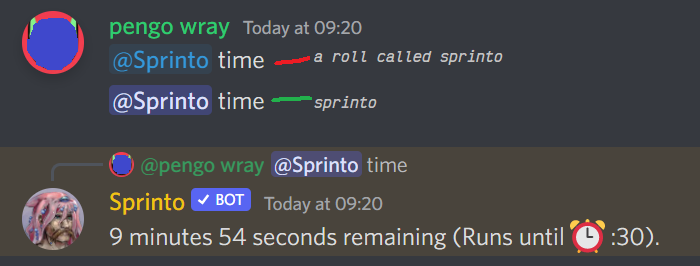
Spot the difference: The @Sprinto role doesn’t respond. Discord creates this role with the same name as the bot and it’s a usability nightmare. The color and formatting of the role and bot may also be very similar, depending on Discord server settings.
- All of Sprinto’s commands work with
@Sprintoas a prefix. Some folk will find@Sprintomore reliable and easier than slash commands. Example:
If there’s a Discord role named
@Sprintoyou might accidentally mention it instead of@Sprintothe bot. Check you didn’t mention a role.To be really sure, you can mention Sprinto by his full name,
@Sprinto#2517This will mention the bot specifically and not the role, which is annoying to type but can test if this is the issue and not something else. If you copy@Sprintocommands from this documentation, it will copy @Sprinto as @Sprinto#2517
- If you’re an admin, please rename the
@Sprintorole to another name such as@RoleForSprintoso sprinters can @Sprinto more easily. There’s more admin tips below under “For admins”.
2) Make sure you’re actually sending a slash command
Sometimes sprint commands don’t succeed because they’re sent as chat messages.

Sometimes sprint commands don’t succeed because they’re sent as chat messages.
How to tell if you’re sending a chat message instead of a slash command:
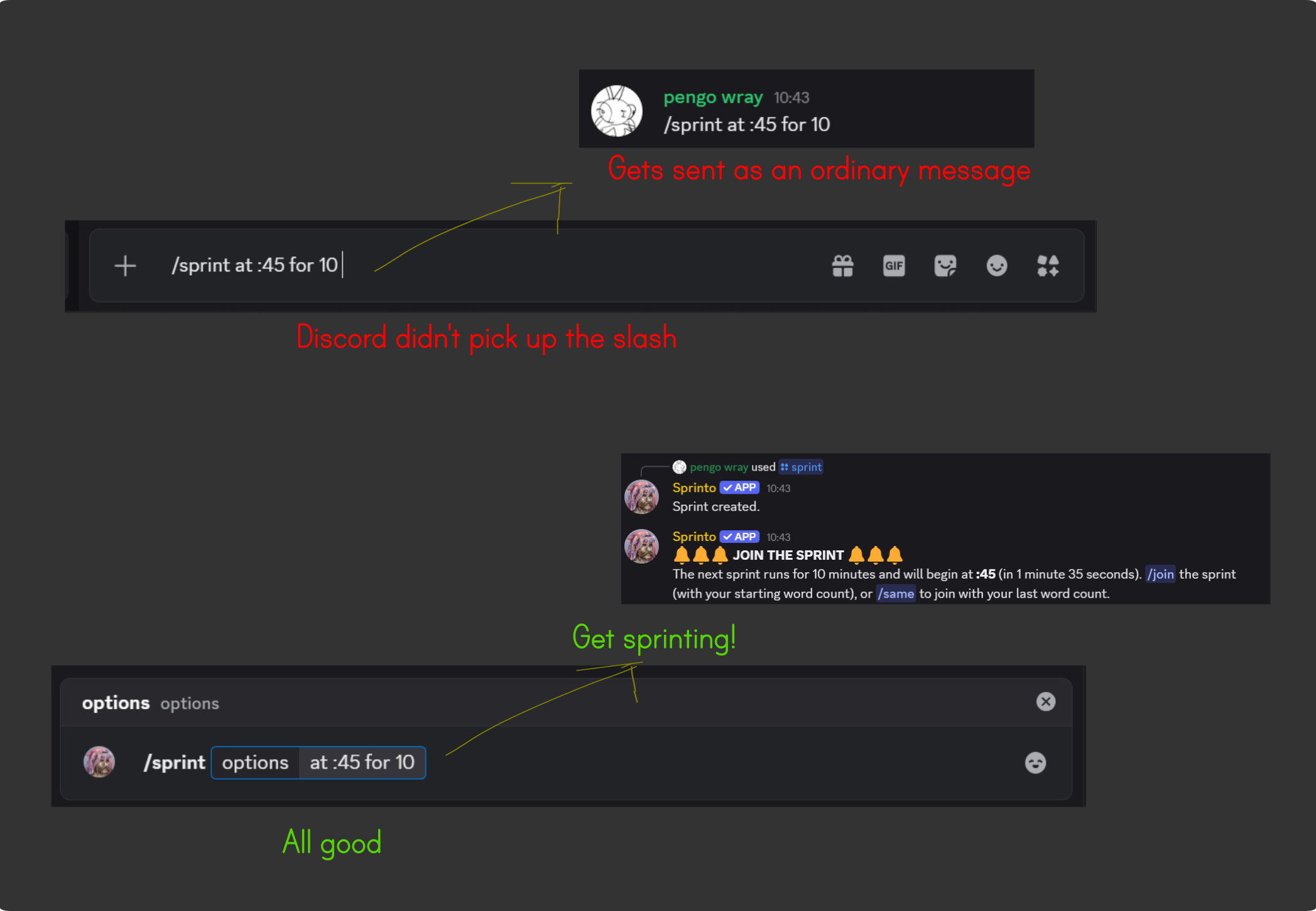
Slash commands that fail vs succeed
- Slash commands can be unreliable. Sometimes you’ll just type
/sprintinto chat instead of sending a/sprintcommand to Sprinto. Mobile is more prone to this problem.
Tips:
Type a slash command (for example
/sprint), then wait for the menu to pop up, then click or tap on Sprinto’s sprint command.Try typing a single slash (
/) and wait for the menu to pop up before typing the rest of/sprint.On desktop with keyboard: after typing a command like
/sprintyou can use up & down arrows to select the command, and then Tab so you can enter any options.Discord is bad at copy-pasting slash commands, so avoid that if you can. It’s also bad at copy-pasting
@Sprinto(it might switch to @‘ing the role).Ask for help or report strange Sprinto behavior with
/feedback, or come to the Sprinto Planet Discord for support.
3) Check “Legacy chat input” (it breaks slash commands)

Slash commands will not work if you’re using “Legacy chat input”, so keep this off unless you need it. (User Settings > Accessibility)
For admins
Some of Sprinto’s permissions were reset in early September 2022. Try re-adding Sprinto to your server to fix permission problems (you do not need to kick him first). From Sprinto’s profile, click Add App.
If Sprinto isn’t starting sprints, make sure he has permission to send messages in your sprinting channel.
/sprintwill warn you if Sprinto does not have Send Messages permission (but@Sprinto sprintcan’t).
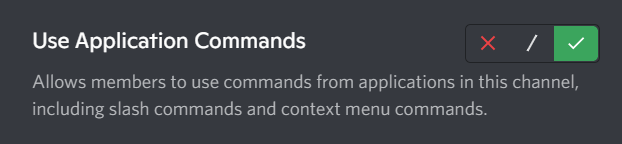
If users can’t see the slash command menus, check they have Use Application Commands permission (can be set per-channel or per-role).
Sprinto’s commands also have permissions under Server Settings > Integrations > Sprinto > Manage.
For completeness: under Server Settings > Roles, there are also permissions under Sprinto’s role (“This role is managed by an integration: Sprinto”). Sprinto doesn’t need special role permissions, except it needs Manage Roles if you’ve got an
@ActiveSprinterrole that you want Sprinto to manage.
Thanks for your patience and support.
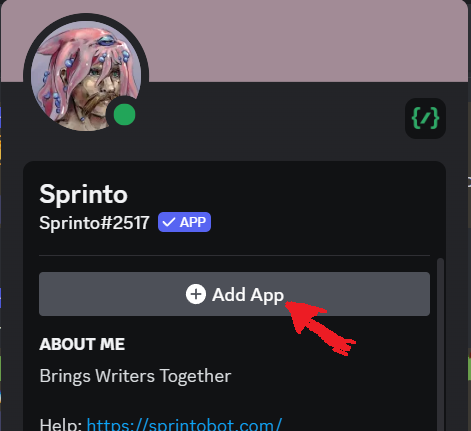
- Adding Sprinto to your server again (to a server he’s already on) may fix permission problems.
- Check Sprinto can send messages in the channels you want to run sprints.
- If Sprinto appears stuck on “Sending command…” for more than ~10 seconds, that’s usually a Discord hangup. Check your internet connection and restart Discord.
- You can manage Sprinto in the Integrations section of your Server Settings Note: this isn’t available on Discord mobile.
- Everyone you want to be able to use Sprinto needs Use Application Commands permission. Role locking can cause issues.
Discord required bots to switch to slash commands. Sprinto needed a surprising amount of work to keep working with the new system, and it’s still a work in progress. Some less common commands can only be accessed by mentioning @Sprinto for now.
History
This guide was originally posted on the Sprinto Planet discord (in “#📣-news-and-updates”), then heavily updated with screenshots for a Patreon post which was titled “Sprinto has switched to slash commands (tips)” (2022), and has now moved here to the Sprinto website for easier access and better formatting and has been updated again.
See also
- Overview of Help
- Frequently Asked Questions (FAQ)
- Curious commands — commands you don’t need.